Canva Explained: How This Design App Turns Anyone Into a Designer
Most people who use Canva didn’t set out to become designers. They needed a Instagram post by tonight, a resume that didn’t look copy-pasted from Word, or a pitch deck their boss wouldn’t roll their eyes at. Canva built its entire reputation around that exact moment — the point where someone needs something to look professional, fast, without years of design training behind it.
The app now serves over 230 million monthly active users across 190 countries, and the platform has grown well past its original template-and-drag-and-drop identity. Today it bundles a full AI suite called Magic Studio directly into the editor, which means design help sits one click away instead of requiring a separate tool entirely.

What Canva Actually Does
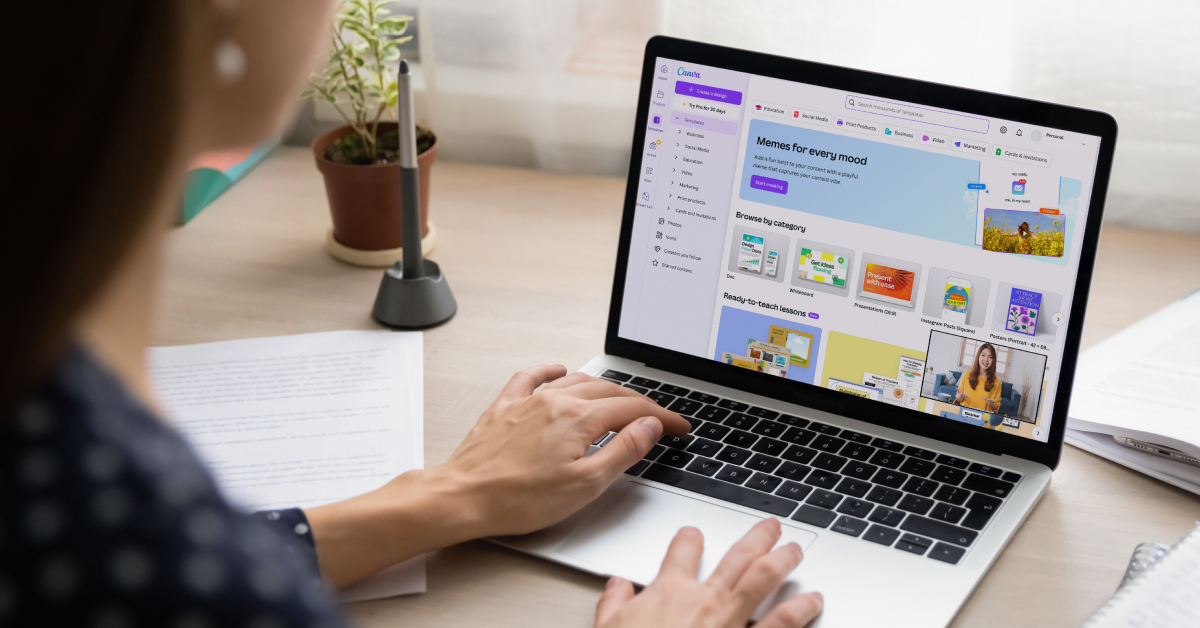
At its foundation, Canva works as a visual editor built around templates instead of a blank canvas. Pick a format — social post, presentation, resume, poster, video — and thousands of pre-made layouts appear, ready for text swaps, color changes, and photo replacements. Drag, drop, resize, done. No design degree required.
What separates Canva from older tools like Photoshop is the assumption baked into its design: most users aren’t professionals, and they shouldn’t need to learn layers, masks, or vector paths just to make a flyer look decent. Magic Studio pushes that philosophy further by handling entire design decisions automatically when asked.
Tools Built Into the App
A handful of features do most of the heavy lifting inside Canva:
- Magic Design – generates a complete, on-brand layout from a short text prompt, pulling colors and fonts straight from your Brand Kit if one is set up.
- Dream Lab (Magic Media) – a text-to-image generator that produces photorealistic visuals directly on the canvas, useful for product mockups or campaign imagery without a stock photo subscription.
- Magic Write – an in-editor copywriting assistant, best used for polishing a first draft rather than generating finished copy from scratch.
- Magic Eraser and Magic Expand – remove unwanted objects from a photo or extend an image beyond its original frame, both without touching Photoshop.
- Magic Switch – turns one finished design into dozens of platform-specific formats in seconds, so an Instagram post becomes a story, a banner, and a print flyer without manual resizing.
- Brand Kit – stores logos, fonts, and brand colors so every AI-generated design starts closer to “on-brand” instead of generic.
None of these tools require switching apps. Everything lives inside the same editor tab, which cuts down on the back-and-forth that used to eat up half a design session.
Why People Stick With It
The biggest advantage comes down to speed without sacrificing polish. A marketer who used to brief a designer and wait two days can now produce a usable draft in minutes, then hand it off for final touches if needed. That shift matters most for solopreneurs, small teams, and anyone without a dedicated design hire on staff.
Cost plays a role too. Canva Pro runs around $14.99 a month and bundles the entire Magic Studio suite, a massive template library, and cloud storage — a price that undercuts most standalone AI design tools while covering far more ground. For teams that need collaboration, Canva Business adds shared brand controls and a larger AI credit allowance on top.
Who Should Use Canva
- Social media managers and content creators publishing across multiple platforms daily
- Small business owners who need marketing material without hiring a designer
- Teachers and students building presentations, worksheets, or study materials
- Marketing teams that want branded content produced faster than a traditional design pipeline allows
- Anyone who just needs a résumé, invitation, or poster to look finished in under an hour
Professional designers working on pixel-perfect print production or complex vector illustration usually still lean on Adobe’s suite instead — Canva optimizes for speed and accessibility, not granular control.
How to Get Started With Canva
- Sign up at canva.com or download the mobile app; the free plan covers most everyday design needs.
- Set up your Brand Kit if you’re designing for a business — logo, brand colors, and fonts feed into every AI tool from here on.
- Pick a design format — social post, presentation, document — and browse the matching templates.
- Customize the layout by swapping text, photos, and colors, or type a prompt into Magic Design for an instant on-brand draft.
- Refine with Magic Studio tools — clean up a photo with Magic Eraser, generate a custom image with Dream Lab, or tighten your copy with Magic Write.
- Resize for other platforms using Magic Switch instead of rebuilding the design from scratch.
- Download or publish directly to social platforms, or share a link for teammates to review and edit.
Most first-time users have a finished design within fifteen minutes of signing up, even without touching a single AI tool.
Final Thoughts
Canva earned its spot as the default design tool for non-designers by solving a very specific problem: making something look professional shouldn’t require a professional. Magic Studio adds real horsepower on top of that foundation, but the core appeal stays the same — pick a template, make it yours, and get back to whatever you were actually trying to accomplish.
Get started: https://www.canva.com